Your files.
A little easier.
Kumo puts everyday file actions in a radial menu that opens where you are already working. Drag files in File Explorer, tap Shift, and release on what you want done.

How it works

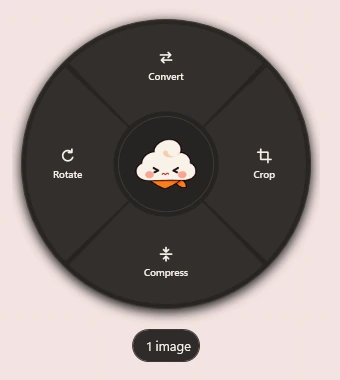
It opens where you already are
Start dragging files in File Explorer or on the desktop and tap Shift. Kumo's menu opens right under the pointer.
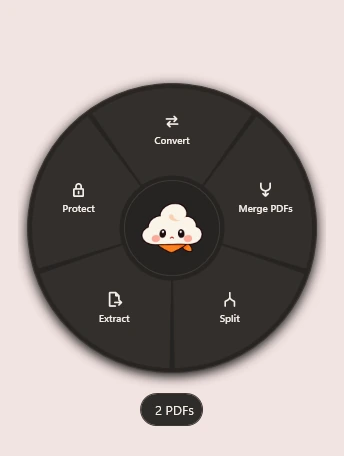
- Only the actions that work for those files are shown.
- Hold Shift instead of tapping it and Windows moves the files as usual.
- Release outside the menu, or press Esc, and nothing happens.
Your originals stay as they are
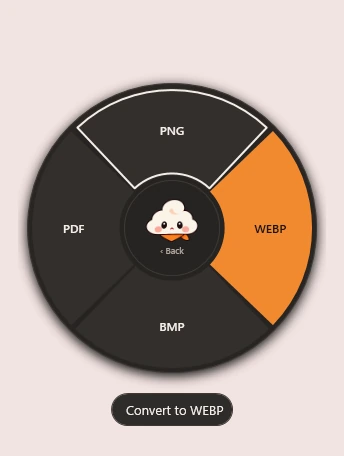
Convert a picture to PNG, JPEG, WebP, BMP or PDF. Kumo never overwrites the file you started from.
- The result is saved as a new file, next to the original.
- If the name is already taken, Kumo numbers the new one: strawberry (2).webp.
- Rotate, crop and compress work the same way.
Tidy folders, pages in order
Split one or more PDFs and every page becomes its own PDF, gathered in a folder named after the file.
- Pages are numbered 001, 002, 003, so they sort in the right order.
- Each PDF gets its own folder, such as notes (pages).
- You can also merge PDFs, or extract just the pages you need.
 Unlock PDF
Passwords are respected
When a PDF you are merging has a password, Kumo notices and asks for it before it starts.
- The password is only used to open that file; Kumo doesn't get around the protection.
- The merged copy is saved without a password, and the original keeps its own.
- Everything happens on your PC. Nothing is uploaded.
 clouds.webp
 logo.png
Try it before you download it
A pretend Windows desktop, right in your browser. Open the sample pictures and PDFs, drag them around, make a drawing, and use Kumo on all of it.
- Sample files only; nothing leaves your browser.
- Works with a mouse and keyboard, like the real app.
What Kumo can do
Images
- Convert
- PNG, JPEG, WebP, BMP and GIF to PNG, JPEG, WebP, BMP or PDF.
- Crop
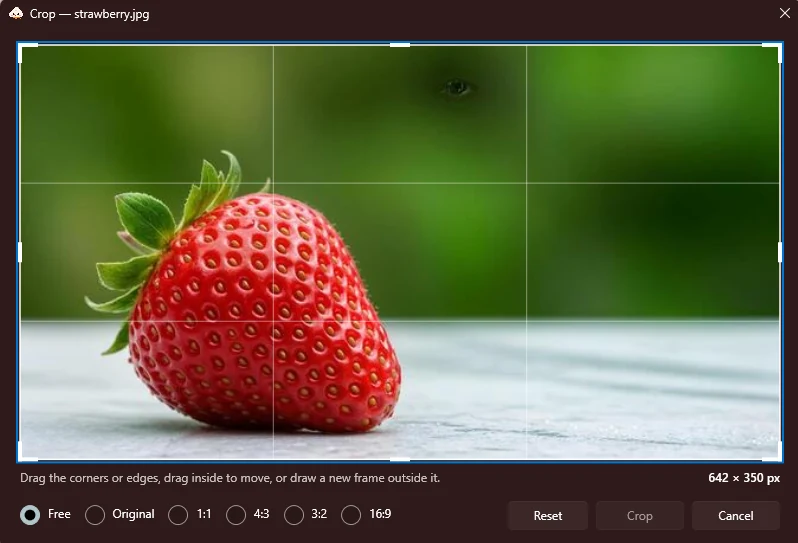
- In a preview editor with handles, guides and ratios such as 1:1, 4:3 and 16:9.
- Rotate
- 90° either way, or 180°, without opening an editor.
- Compress
- Smaller JPEG and WebP files; PNG compression is lossless.
PDFs
- Merge
- Combine several PDFs, or several images, into one document.
- Split
- One file per page, or only the pages you choose.
- Protect
- Save a password-protected copy.
- To images
- Turn pages into PNG or JPEG.
Your files stay on your PC.Everything is processed locally and nothing is uploaded. Kumo never overwrites an original; it writes new files beside it, or to a folder you choose.
Only relevant actions.The radial menu adapts to your selection and shows the actions available for those files.
Open source
Kumo is free and released under the MIT License. The code, the issue tracker and every release live on GitHub. Bug reports and pull requests are welcome.